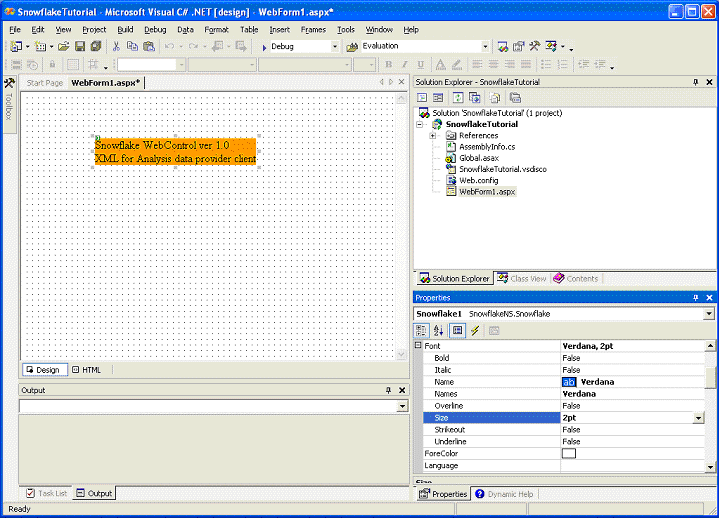
You can customize the look and feel of the control by setting the properties of the control that are available both at design and run-time. Practically, all visible characteristics of the control can be changed, starting from background color, image, through fonts, borders, dimension and data cell back and foreground colours. For the complete set of properties, please consult the List of Snowflake.net Properties. Once you perform a change, the result is displayed immediately in the design view.
You can also choose the language for the menu items and messages at design and run-time (currently there are 7 available languages), and you can select format for numbers through Snowflake.net culture property.
For advanced users you can provide direct access to the MDX query contents by setting the QueryTextVisible option to true.
In this example we have changed:
a) Font type and size - Verdana 2pt
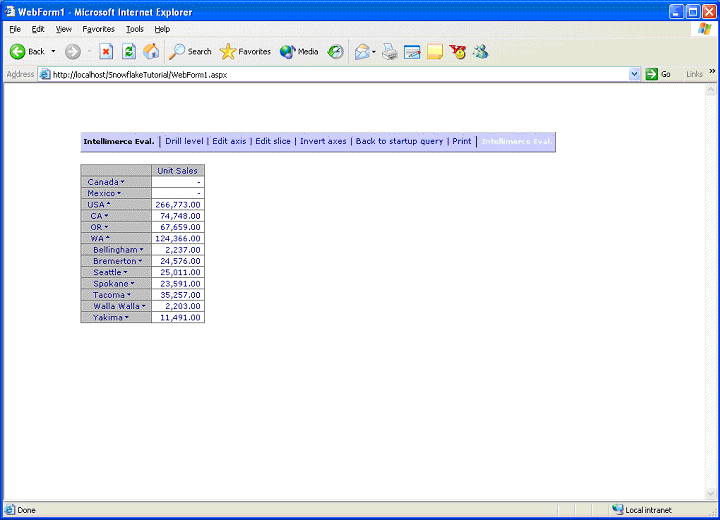
b) Fore Color – Navy
c) DataBackColor – Light Blue
d) DataForeColor – Navy
e) MembersBackColor – Gray
f) MembersForeColor – Navy
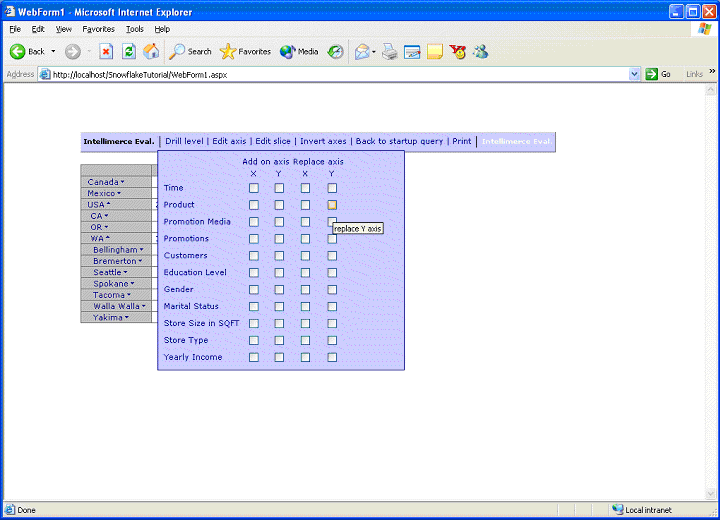
g) MenuBackColor – Light Blue
h) MenuForeColor – Navy
You can also change the EmptyCellString from the default empty string to, for example, dashes. Our changes are shown in the next screen capture.
|
|